Chat with the live web
Highlight a section, ask a follow-up question, and keep a running conversation beside any page.

Community walkthrough for the latest Atlas beta
Navigate AI workflows faster with ChatGPT beside the web.
Atlas Browser is an AI-native browsing experience built around ChatGPT. Keep a live conversation next to the page you are reading, organize research in Spaces, and turn sources into summaries, drafts, and next steps.
Atlas brings ChatGPT into the browsing flow so you can ask questions about the current page without losing context. It is designed for deep research, writing, source comparison, and creative work where notes, files, tabs, and conversations need to stay connected.
Watch the official product introduction to see how ChatGPT, browsing, and project context come together.
Atlas is OpenAI's AI-native browser. Its core idea is to keep ChatGPT anchored to the live web while giving each project a durable place for context, sources, and follow-up work.
Highlight a section, ask a follow-up question, and keep a running conversation beside any page.
Group tabs, chats, notes, and files into Spaces that keep each project easy to pick up again.
Use citations, live previews, and browser controls to trace information before relying on it.
Atlas keeps context close, reduces repetitive browsing work, and helps move from a question to a useful result faster.
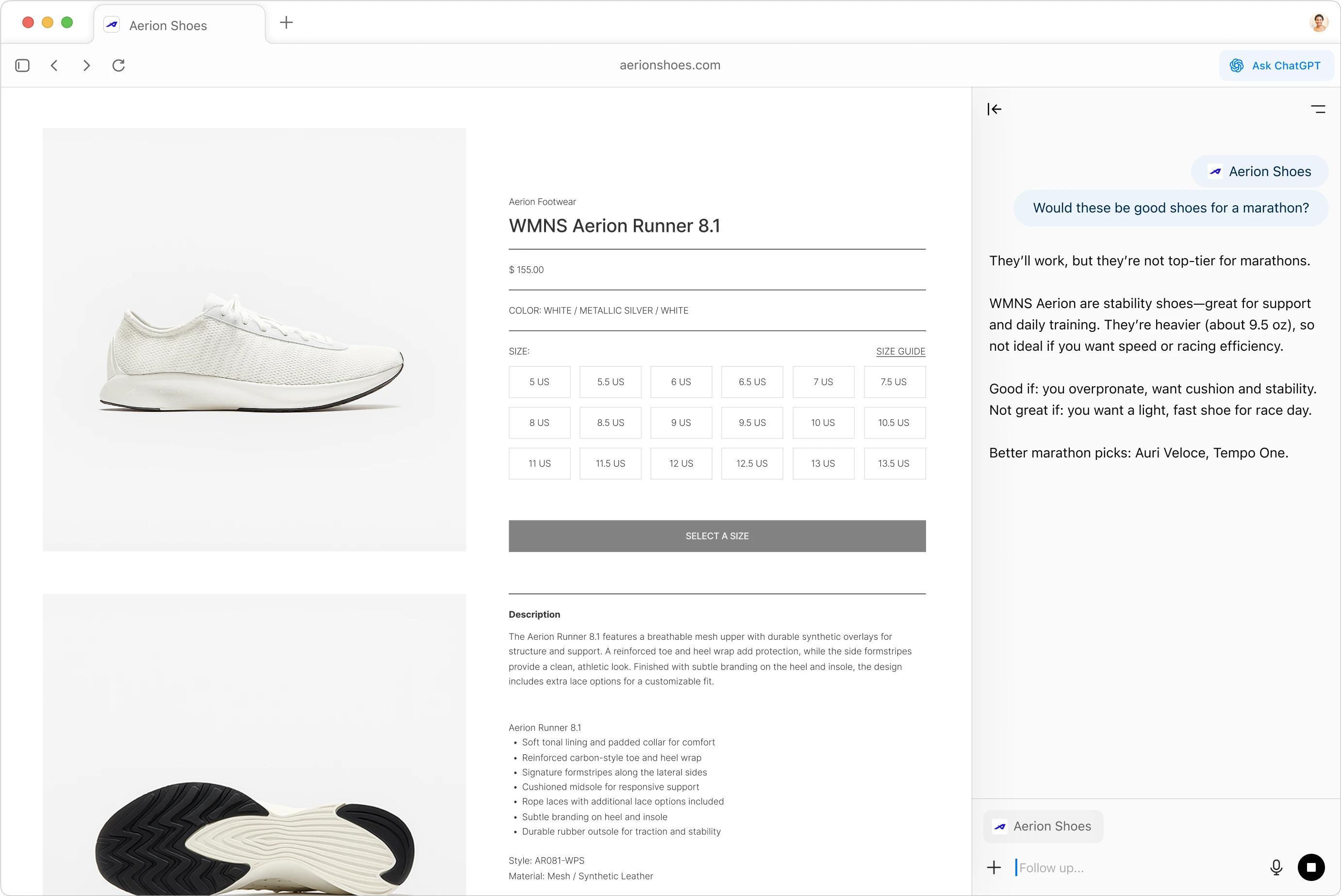
Summarize, translate, or compare sources without breaking the flow of the page you are viewing.
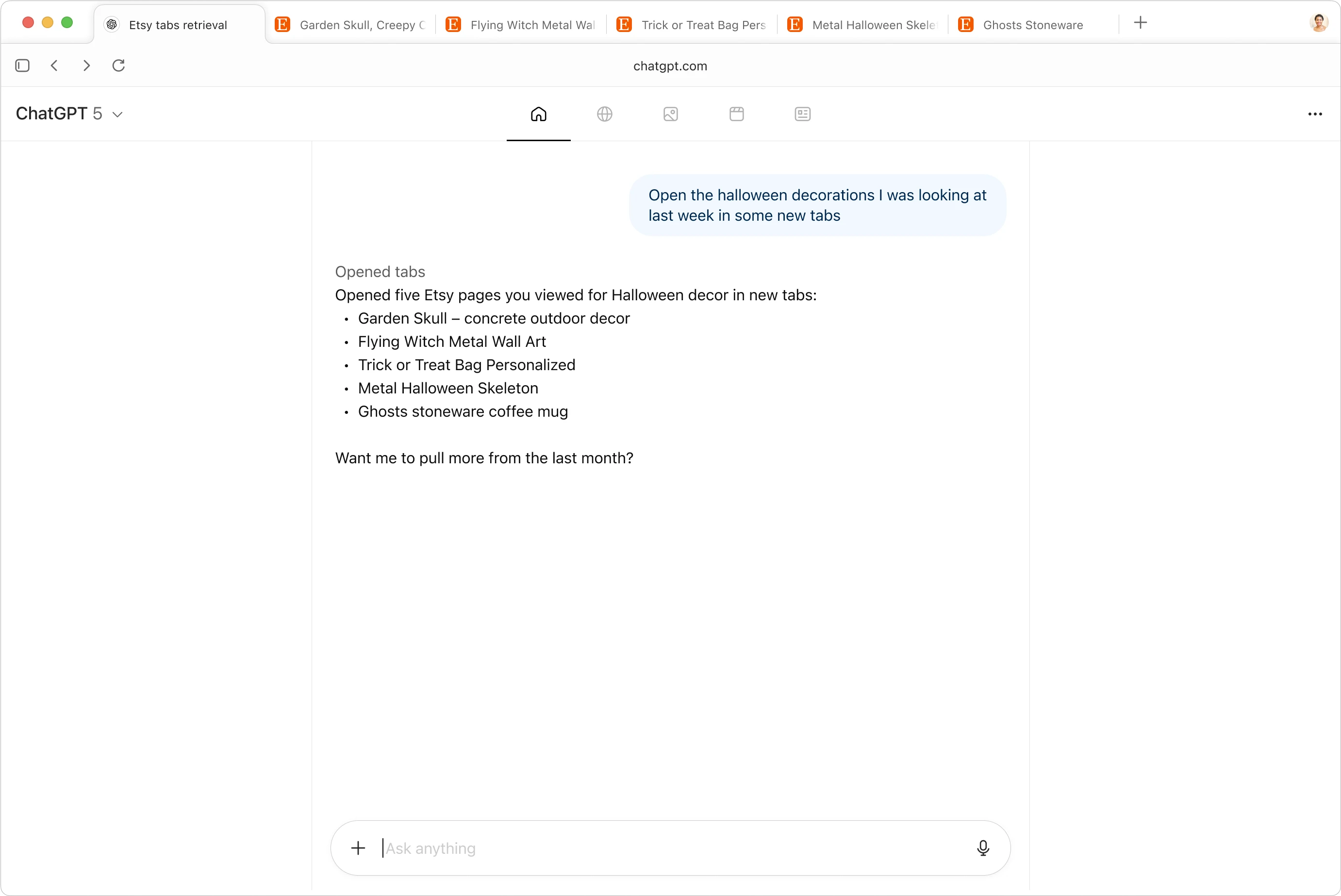
Return to a project with its tabs, conversations, uploads, and notes still connected.
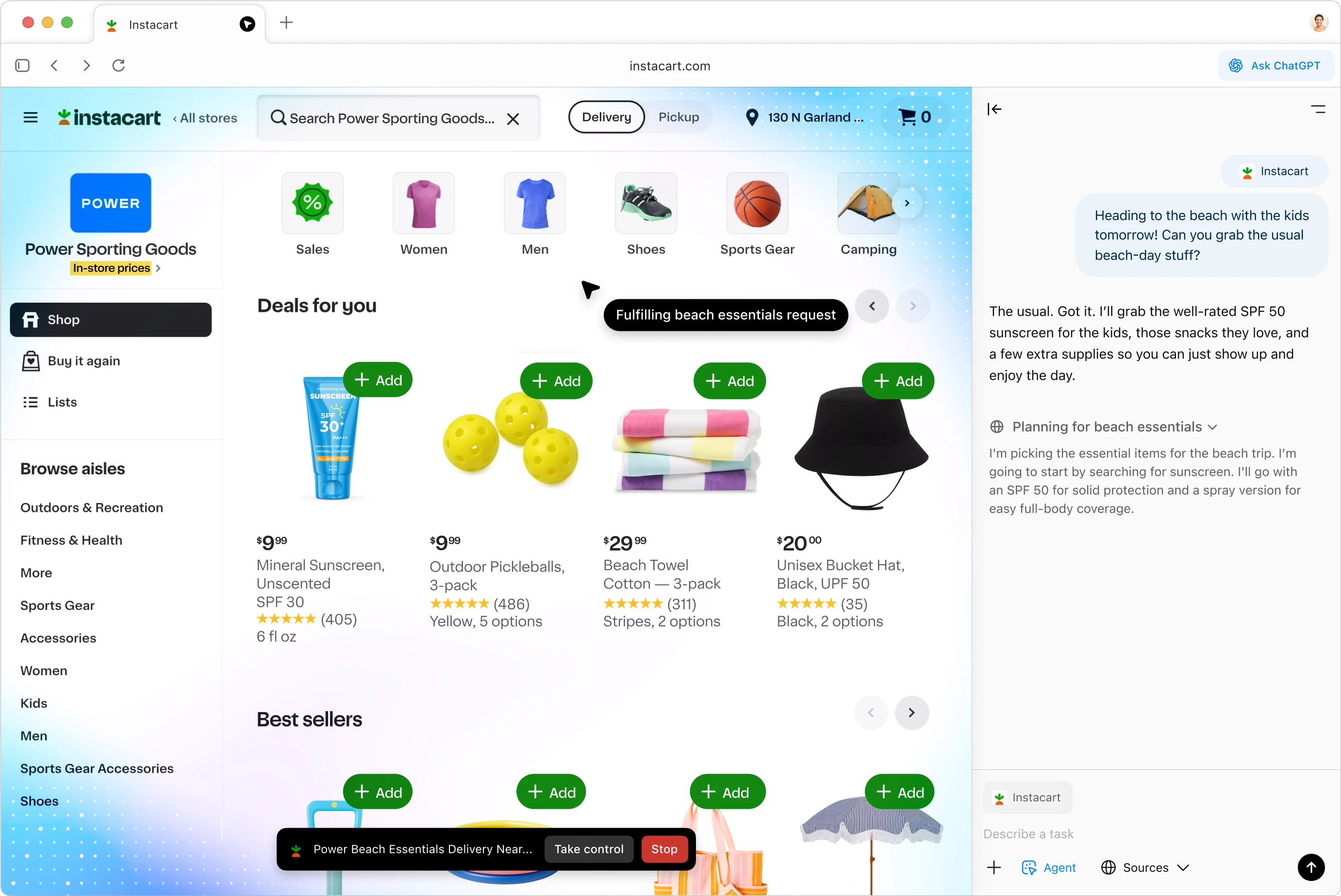
Surface sources and inline previews so insights are easier to check and share with confidence.
Use this snapshot to decide when Atlas is the right choice versus other AI-native browsers and agent workspaces.
OpenAI browser with ChatGPT built into every tab.
A persistent ChatGPT sidebar, Spaces for projects, and system-level privacy controls for an official OpenAI workflow.
Research workspace combining Perplexity answers with browser tabs.
A multi-panel layout where live answers, citations, saved threads, and reference tabs stay connected.
Agent browser that lets you and your AI agents share a Chromium workspace.
ego (lite) combines a daily-use Chromium browser with ego-browser tooling so agents can work in logged-in tabs and Spaces without taking over your session.
Automation-first browser with agent workflows and playbooks.
Sigma focuses on repeatable automations, agent scripts, data capture, and exporting results at scale.
Arc's Chromium browser augmented with AI helpers.
Arc Max adds instruction-based browsing, summaries, and custom commands to Arc’s design-first workflow.
Open-source toolkit for building autonomous browsing agents.
Browser Use offers TypeScript and Python SDKs plus a hosted runtime for agent-driven browsing integrations.
AI browsers evolve quickly. Confirm current feature, pricing, availability, and policy details on official product pages before committing.
Atlas combines the power of ChatGPT with a modern, privacy-aware browser for research, writing, and everyday work.
Ask ChatGPT to summarize, translate, compare, or explain the page beside you.
Group tabs, chats, uploads, notes, and teammates around one project.
Keep sources and inline previews visible so important answers are easier to verify.
Turn long articles, PDFs, and videos into key takeaways or action items.
Upload screenshots or documents and ask ChatGPT to extract and interpret what matters.
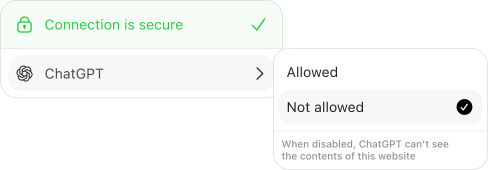
Review sharing settings and workspace policies before using Atlas with sensitive work.
Use these four steps as a simple starting point for your first Atlas workflow.
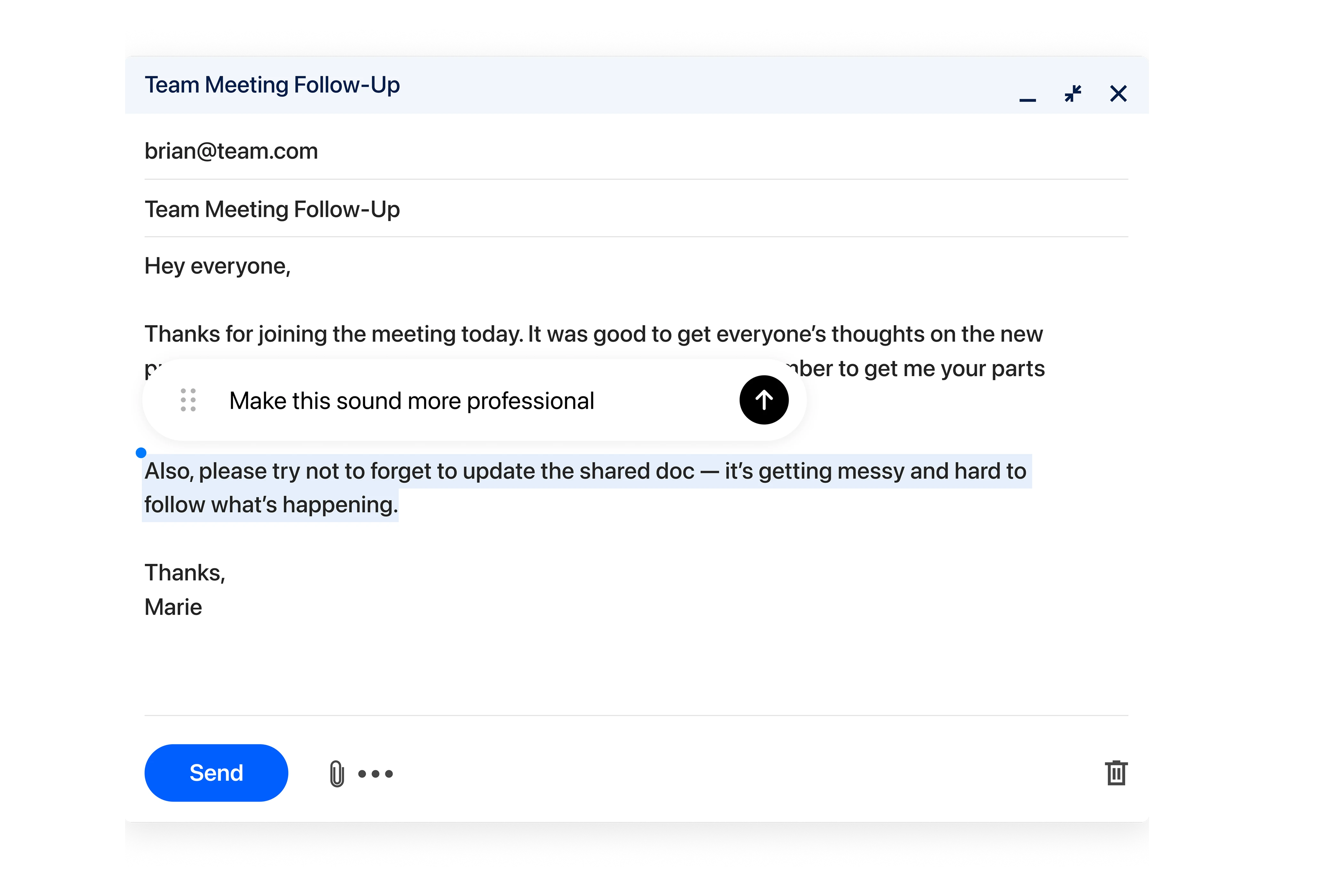
Get the macOS build from OpenAI or use the official product page for the latest availability.
Sign in with your ChatGPT account and review which features are available for your plan.

Start a Space for a research question or project, then add relevant tabs, notes, and files.
Try summaries, comparisons, drafts, and follow-up questions while keeping the source page in view.
Compare sources, keep citations close, and move from an open question to a structured brief.
Turn articles, references, and visual material into outlines, drafts, and practical next steps.
Use Spaces to keep project context together and make handoffs easier to follow.
Composite perspectives from public community feedback, provided as learning context rather than official endorsements.
“Atlas keeps interviews, findings, and experiments in one AI-assisted timeline, helping teams move from research to insight faster.”
“ChatGPT living beside the web can change how ideas are tested, while Spaces make stakeholder handoffs easier to follow.”
“Instant summaries and cited answers make it easier to evaluate what Atlas surfaces before using it in an analysis.”
“Writers can draft documentation while Atlas highlights source material and keeps the working context pinned to the side.”
“Security reviews and admin controls still need validation, but the workflow can map naturally to existing policies.”
“Spaces can feel like a living knowledge base, moving a team from question to answer without repeatedly rewriting the brief.”
Atlas is OpenAI's AI-native browser that pairs the power of ChatGPT with a fast, secure browsing experience. This page is an independent directory entry, not an official OpenAI page.
Atlas can work with an OpenAI account, but advanced capabilities such as higher-end reasoning models and enterprise controls may require ChatGPT Plus, Team, or Enterprise.
The referenced guide describes Atlas as available on macOS, with other platform experiences developing over time. Check the official Atlas page for the current availability before downloading.
Spaces bundle tabs, chat history, files, and notes into one project workspace so you can return to the same context later or share it with teammates.
Browsing data and sharing depend on the product settings and account plan. Review the current OpenAI privacy and data-control documentation before using Atlas with confidential information.
Use the in-app feedback menu or the official OpenAI support channels to report an issue. Include the page, workflow, and steps that led to the problem.
Download the official app from OpenAI and keep this page nearby for workflows, feature notes, and safety reminders.
Official references
Use OpenAI’s launch post, Atlas Help Center, and privacy documentation for the latest product and policy details.